NODE IN N8N
Before diving into the nodes, let’s get familiar with n8n’s main interface — where all workflows are managed and operated.

Main Interface
This is the first screen you see when you open n8n. At the top you’ll find key metrics: total workflow executions (Prod. executions), failed runs, failure rate, and average run time. Below that is your full workflow list with tabs: Workflows, Credentials, Executions, Variables, and Data tables. The left sidebar lets you switch between different projects.

Workflow Editor
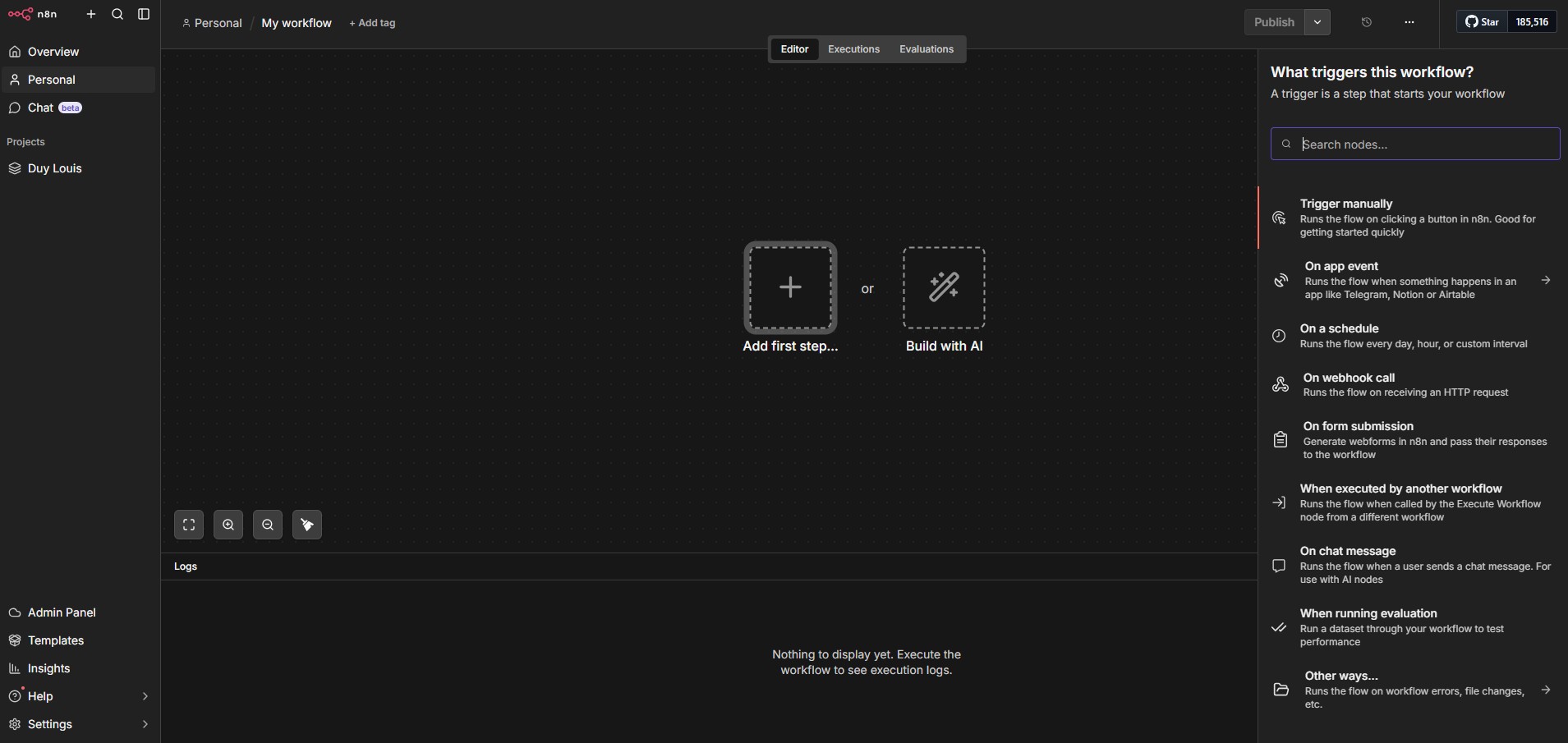
Click “Create workflow” to enter the editor — this is where you build your entire automation logic. The blank canvas in the center is where you drag, drop, and connect nodes. At the top you’ll see three tabs: Editor (where you build), Executions (run history), and Evaluations. The Logs panel at the bottom shows real-time execution results when you test your workflow.
Selecting Your First Node
Click “Add first step…” to open the node list. A panel slides in on the right showing all available nodes — organized by category: Triggers (nodes that start a workflow) and Actions (nodes that process logic). You can search by node name or scroll to browse. Every workflow starts from this step.

Schedule Trigger
Starts a workflow on a fixed time schedule — every hour, every day, every week, or on a custom cron expression. This is the go-to node for recurring tasks like syncing prices, automated reports, or periodic data checks. The workflow runs automatically at the set time without anyone having to press a button.

Webhook
Starts a workflow when an HTTP request is sent to it from an external source. n8n gives you a unique URL — any system that calls that URL instantly triggers the workflow. Webhooks are perfect for event-driven scenarios: a customer sends a message, a new order is created, or another system needs to notify n8n of something.

HTTP Request
Calls any API using HTTP — GET, POST, PUT, PATCH, DELETE. This is the most flexible node in n8n: if a service doesn’t have its own node but has an API, you can still connect to it through HTTP Request. Fully supports headers, authentication, query params, and request bodies in JSON or form data format.
IF
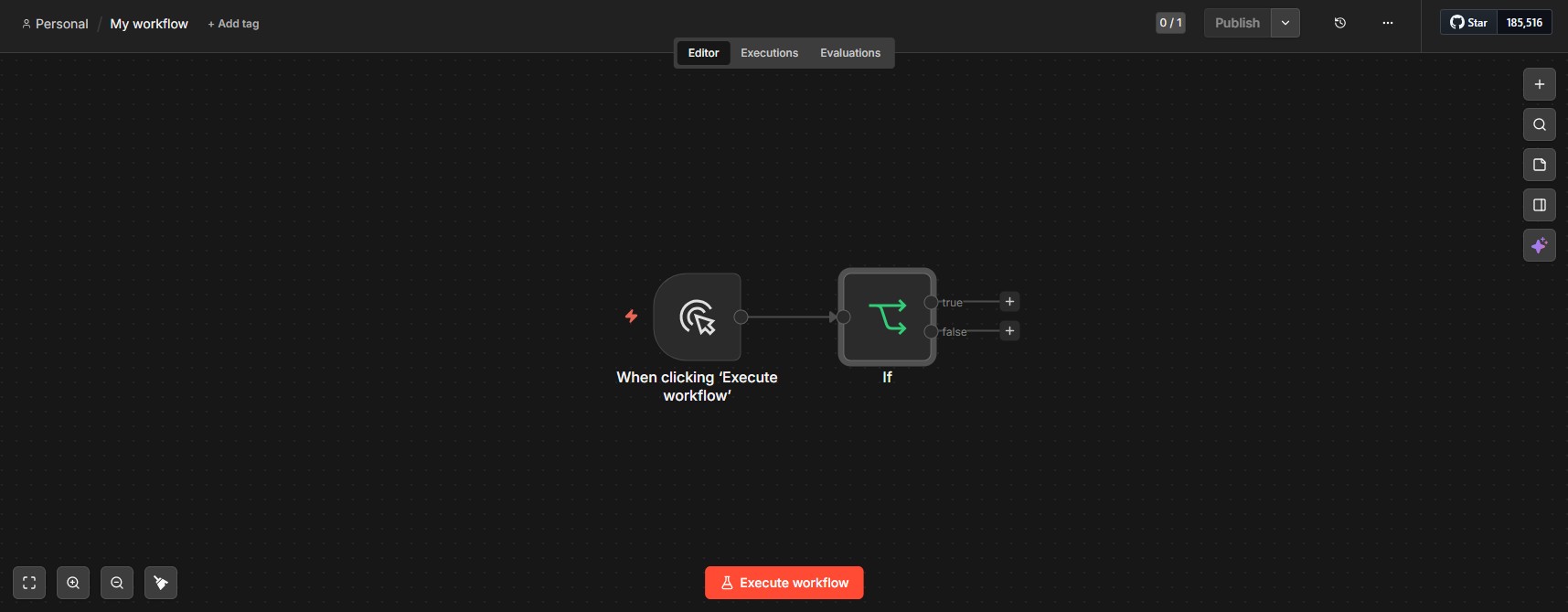
A conditional branching node — if the condition is true, the workflow goes one way; if false, it goes another. Just like an if/else statement in code. Use IF when your workflow needs to handle things differently depending on data values — for example: if stock is below 10, send an alert; if above 10, continue as normal.

Switch
Like IF, but with multiple branches — instead of just true/false, Switch can route data into 3, 4, or 5 different directions based on the value of a field. Use Switch when you need to handle multiple cases: if the platform is Shopee do A, TikTok do B, Facebook do C.

Set
Assigns, modifies, or creates new values in the data object flowing through the workflow. Use Set when you need to add a new field, change an existing value, or rename a key before passing data to the next node. Very commonly used to reformat data into the exact structure an API expects.

Code
Runs arbitrary JavaScript — used when no existing node can do what you need. You write code directly into the node, process data with any logic you want, then return the result for the next node to use. The Code node is your safety net: whenever a workflow needs complex processing that built-in nodes can’t handle, Code will get it done.

Loop Over Items
Iterates through each item in a list and processes them one by one. Use this when you have an array of data — a list of products, orders, or users — and need to perform the same operation on each element. Loop ensures no item gets skipped and helps you control API rate limits by processing items sequentially.

Merge
Combines multiple data streams into one. When your workflow splits into parallel branches — for example simultaneously calling the Shopee API and the TikTok API — Merge waits for both to finish, then combines the results before continuing. Supports multiple modes: Append, Combine, or wait for all branches to complete.

Wait
Pauses the workflow for a set amount of time before continuing. Use this when you need a delay between steps — for example waiting 5 seconds between API calls to avoid rate limits, or waiting until a specific time. Wait doesn’t consume resources during the pause — the workflow truly sleeps and wakes up exactly on schedule.

Supabase
Connects directly to your Supabase database — read, write, update, and delete data without writing SQL manually. You select the table, choose an operation, fill in the conditions, and n8n builds the query for you. This is the central node in most workflows: fetching product data, saving processed results, reading auth tokens, or logging execution history.

Redis (Upstash)
Reads and writes data to Redis — a high-speed key-value store. Inside an AI Agent, Redis acts as short-term memory: conversation history is saved per session key, the Agent reads back context before responding. Beyond AI Agents, Redis is also used to cache API responses, store temporary workflow state, or flag already-processed items to prevent duplicate handling.

Send Email
Sends emails via SMTP — connects to your mail server and sends automated emails based on a template. Supports HTML emails, attachments, CC/BCC, and multiple recipients at once. Use this for weekly automated reports, error notifications when a workflow fails, or any situation that requires sending emails on a schedule without manual intervention.

Anthropic
Calls Claude’s API directly — sends a prompt and receives a response from Claude. Use this when you need AI to handle a specific task within a workflow: analyzing text, summarizing content, classifying data, or generating content automatically. Unlike the AI Agent node, the Anthropic node is a single call — no memory, no tool calling.

AI Agent
The most powerful node in the stack — creates an AI Agent capable of reasoning, planning, and using other tools to complete a task. An AI Agent doesn’t just answer one question — it can decide what needs to be done, which tools to call, where to read data from, and loop until it gets the right result. Combined with Redis for memory and Supabase as a knowledge base, an AI Agent becomes a real assistant capable of handling complex, multi-step requests.

Auto-sync products to Google Merchant
Automatically updates products from a spreadsheet, cross-references and pulls images from Shopee, then pushes everything to Google Merchant Center. A lifesaver for websites built with messy JavaScript that Google simply cannot crawl — instead of waiting for Google to find you, the workflow actively pushes accurate product data with correct pricing and stock levels directly to Merchant Center.

AI Agent — Auto consult, close orders & print
Fully automated end-to-end: the AI Agent consults the customer, closes the order, creates the order record, generates a PDF, and sends it to the printer automatically — staff only need to see the printed order and pack the goods. The Agent gets smarter over time by updating product information, keywords, descriptions, and FAQs in Supabase — the more data you feed it, the better it handles real situations.

Auto-reply YouTube comments
Solves the very real problem of forgotten YouTube comments — the most neglected section of any channel. The workflow automatically detects new comments, analyzes the content, and replies appropriately, ensuring no comment goes unanswered no matter how many videos your channel has.